
How it Works
When an order is placed in Commerce7, the order will automatically appear in FORT Ship. Within FORT Ship, you can effectively operate as your own fulfillment center: batch print labels, manage containers, add rules for determining carrier selection, create process groups, access the complete package life cycle, and much more.
Once you print in FORT Ship, tracking data will be visible in Commerce7, and the Shipment Confirmation email can update your customers on the current package status. FORT can be configured to generate multiple additional notifications, such as ‘prepared for shipment’, on hold for weather, scanned, out for delivery, rescheduled, attempted, post delivery, etc.
If you have any questions about the FORT platform, please visit the FORT website.
Setting up FORT Ship
Activating the FORT Ship App is easy. Just follow the steps below and you’ll be up and running in minutes!
Go to the Apps & Extensions area in Commerce7, and scroll down to the FORT apps. Whether you are installing FORT WMS or FORT Ship, the install process is the same:
1) Click the Commerce7 Install button

2) A popup will appear with two fields: “FORT Company Code” and “FORT Marketing Code.”
3) Only the “FORT Company Code” field is required – please enter the “Company Code” of the company you are connecting to (“Company Code” can be found in the Company Profile section on the company page in FORT). If you do not yet have a Company Code, please reach out to FORT for assistance.
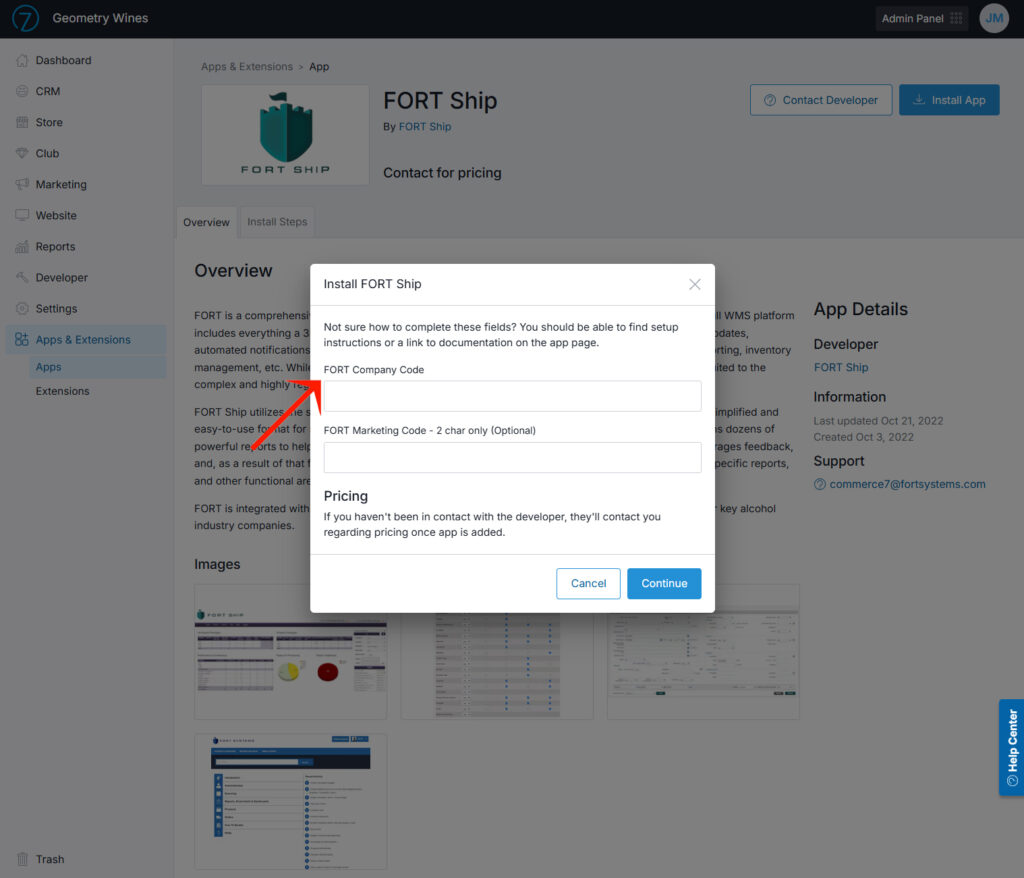
Please note the “FORT Marketing Code” field is not required – this field is needed only if you are trying to connect your account to a Marketing Company. Please also note that if you do enter a Marketing Code and no Marketing Company is associated with the entered Code, then FORT will automatically create a Marketing Company.
4) Click continue.
5) You should receive an email indicating if the install was successful.